
Keeping pupils safe online takes more than filtering a screen. School e-safety means combining practical safeguards with teaching that helps students recognise online risks and make safer choices. Protecting vulnerable student information online also means handling personal data responsibly: schools must manage it in line with the Data Protection Act 2018, according to UK Parliament.
Passwords and security settings matter, but so do daily habits and clear access controls. The challenge is to protect students without making digital learning harder to manage. This guide explains how password security, phishing awareness and carefully managed permissions can help, along with practical ways to support students with SEND and protect their digital footprints. You’ll find steps for building safer routines across school systems and helping pupils understand how online choices can affect their privacy and reputation.
Key Takeaways
- Build safer sign-in habits with unique passwords and an extra verification step for school accounts.
- Teach pupils how to spot suspicious messages and report them promptly, while reviewing who can access student records.
- Make e-safety a whole-school practice, with clear policies and guidance suited to pupils’ needs.
- Help students think carefully about what they share online and how it may affect their privacy and reputation.
- Combine staff awareness, secure digital systems and clear reporting processes to strengthen protection from online harm.
Table of Contents
- 1. Password security and multi-factor authentication
- 2. Phishing, weak passwords, and misconfigured permissions
- 3. What is e-safety for schools?
- 4. Online risks, reputation and digital footprints
- 5. Protecting students from online harm
- Paritor: Xperios for Music Services
1. Password security and multi-factor authentication
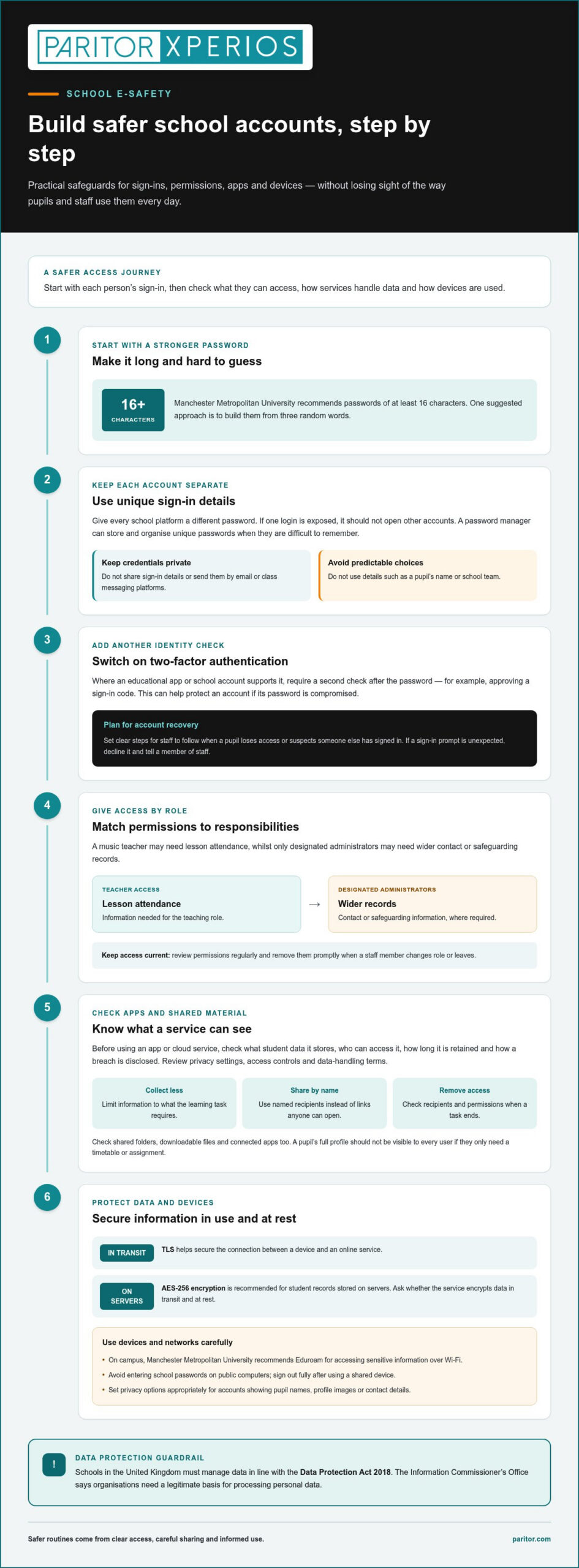
A strong password limits the chance that someone can enter a pupil’s account using guessed or stolen details. Manchester Metropolitan University recommends passwords of at least 16 characters and suggests creating them from three random words. Use a different password for each school platform, so one exposed login cannot open several accounts. A password manager can store and organise unique passwords when pupils or staff struggle to remember them.
Add two-factor authentication wherever an educational app or school account supports it. After entering a password, users must complete another identity check, such as approving a sign-in code. This can help protect an account if its password is compromised. Set clear account-recovery steps too, so staff know how to respond safely when a pupil loses access or suspects someone else has signed in.
Schools in the United Kingdom must manage data in compliance with the Data Protection Act 2018, according to UK Parliament. Use role-based access to match permissions to each person’s responsibilities. For example, a music teacher may need to see lesson attendance, whilst only designated administrators can access wider contact or safeguarding records. Remove access promptly when a staff member changes role or leaves, and review permissions regularly.
How can schools assess the privacy and security of educational apps and cloud services? Check what student data each provider stores, who can access it, how long it is retained and how a breach is disclosed. The Information Commissioner’s Office says organisations need a legitimate basis for processing personal data. Before using an app, review its privacy settings, access controls and data-handling terms.
Protect information while it travels between a device and an online service. TLS helps secure that connection, while AES-256 encryption is recommended for student records stored on servers. Ask whether the service uses encryption in transit and at rest, and restrict information collection to what the learning task requires. A pupil’s full profile should not be visible to every user if a timetable or assignment is all they need.
Device and network choices matter too. Manchester Metropolitan University recommends using Eduroam on campus to access sensitive information over Wi-Fi. Avoid entering school passwords on public computers, and sign out fully after using a shared device. Set privacy options appropriately, especially on accounts that display pupil names, profile images or contact details. These practical steps make secure access easier to maintain during lessons and administration.
2. Phishing, weak passwords, and misconfigured permissions
Phishing often relies on impersonation rather than technical tricks. A message might copy a school logo, use a familiar staff member’s name or create urgency around an assessment deadline. Check the full sender address, not just the display name, and compare unexpected payment or data requests with the school’s usual process. If a message asks for student records, verify the request through a separate, trusted channel before acting.
Weak passwords remain a risk when people share credentials, leave them where others can see them or choose predictable details such as a pupil’s name or school team. Make clear that each account belongs to an individual, and never send sign-in details by email or class messaging platforms. If a pupil receives an unexpected sign-in prompt, they should decline it and tell a member of staff rather than treating it as routine.
More than 30% of cyberattacks against educational institutions involved stolen credentials. That makes the design of account permissions as important as user behaviour. Check how a platform handles shared folders, downloadable files and links that can be forwarded outside a class. A document intended for one tutor, for example, should not be available through a link that anyone can open. Set sharing to named recipients and remove access when the task ends.
Misconfiguration can happen when staff copy an earlier class or course space. Old groups, visiting staff or former pupils may remain attached to new folders unless someone checks. Before sharing a resource, inspect the recipient list and link permissions. For sensitive records, turn off broad sharing and avoid putting personal information in filenames that appear in email previews or downloaded folders.
How can schools protect student data from phishing, ransomware and data breaches? Give staff a simple way to report concerns, limit record access by role and keep a clear record of the systems holding student information. After a suspected incident, establish what information may be affected, preserve relevant messages and logs, and coordinate the response through the school’s designated safeguarding and data-protection leads.
Access reviews should cover connected apps and temporary accounts, not just staff directories. For example, check whether a learning tool still has permission to read a shared drive after a course ends. Ask administrators to record why an app needs each permission, then remove access that no longer serves that purpose. Regular reviews help expose hidden risks and keep student records within the intended school group.
3. What is e-safety for schools?
School e-safety combines teaching, safeguarding practices and technical measures to reduce online harm. It covers how pupils use platforms, how staff manage accounts and how the school responds to concerns. A whole-school approach links classroom learning with filtering, reporting procedures and decisions about digital tools. For example, reinforce rules about sharing images in both lessons and school communications.
Online safety belongs across the curriculum, not only in an occasional assembly. In England, statutory relationships and health education includes teaching primary pupils about online safety and harms; secondary relationships, sex and health education does too. The Department for Education’s 2023c non-statutory guidance also covers teaching online safety. Use examples from classroom platforms to discuss privacy, harmful content, cyberbullying and what pupils should do when something feels wrong.
Make the framework inclusive. Some children and young people with SEND may be socially vulnerable to grooming, cyberbullying or exploitation, while communication barriers can make reporting harder. Adapt explanations to pupils’ cognitive, social and emotional development. For example, teach a clear sequence: stop engaging, save relevant evidence where appropriate, and tell a trusted adult. Align this teaching with the school’s wider safeguarding policies and consider risks beyond lessons.
What are the rules for sharing student information with parents, suppliers and other schools? Share information for a clear purpose, limit it to what the recipient needs and use approved, secure channels. The Information Commissioner’s Office says organisations need a legitimate basis for processing personal data. Define who can receive particular records and how staff should handle requests, rather than assuming every parent, supplier or partner has the same access.
What steps should schools take to secure student information online? Set written rules for account access, approved platforms, safe sharing, filtering and reporting; train staff to follow them. Include how to review a service’s data practices before adoption and how to respond if access or information is compromised. Scotland’s 2017 national action plan on internet safety states that schools are expected to use filtering to restrict access to harmful content. Filtering should support, not replace, teaching and supervision.
Keep staff knowledge current with annual training on phishing, data-removal requests and safe use of third-party apps. Treat biometric tools with particular care: guidance recommends a Data Protection Impact Assessment before using high-risk biometric tools. Explain the purpose, information collected and access arrangements in plain language. A whole-school review should also consider whether platform changes disrupt routines some pupils with SEND rely on, and plan appropriate support.
4. Online risks, reputation and digital footprints
A pupil’s digital footprint can include posts, photographs, comments and location details shared on social platforms. A public image from a school event may reveal a uniform, venue or routine, even without a written address. Teach pupils to pause before posting and consider who could see or copy each item. Reviewing privacy settings together helps them make informed choices about what remains public.
Social media can support friendship and creativity, but posts may also expose sensitive details or affect a pupil’s reputation. In a 2018 survey, 52% of respondents said they shared personally identifying information on social media, whilst 48% shared information about their children. Use examples in teaching: ask pupils to spot identifying clues in a photograph, such as a name badge, school sign or location tag.
The guidance identifies 13 years as the minimum age for accounts on Facebook, Twitter, Instagram and TikTok at the time stated. It also describes 13 as the age at which young people can agree to share information and sign up to social media without parental consent under GDPR. Schools should teach pupils to check age requirements and privacy settings before creating accounts, rather than assuming every platform works alike.
Consent forms need careful handling too. If a school records a child’s participation in an activity online, it should store the form in accordance with the Data Protection Act 2018. Tell parents and carers how the information will be used and stored. Check that the correct person signs, keep the form secure, and make it accessible to authorised staff when needed.
Paper visitor logs can expose sensitive information. A visitor may see names, arrival times or other entries while signing in, and paper records are difficult to audit or monitor in real time. Review what the log asks visitors to provide, where it is kept and who can read it. Store completed records securely, with access limited to staff who need them.
Positive digital experiences depend on practical habits, not just warnings. Encourage pupils to make social profiles private and choose the strictest available privacy settings. Ask them to remove location tags, avoid posting live routines and seek help before sharing another person’s image. These actions support safer participation while leaving room for learning, expression and connection.
Parents and carers can reinforce the same expectations at home. Agree simple family practices, such as asking before posting a child’s photograph and avoiding public posts that identify a school or regular activity. Explain consent forms in plain language, including their purpose, and give families a clear way to raise questions. Consistent messages help children protect their privacy online and offline.
5. Protecting students from online harm
Online safety means protecting students from harmful content, unwanted contact and misuse of personal data. Use filtering and monitoring alongside teaching, supervision and a clear way to report concerns. The UK Safer Internet Centre provides guidance for education settings on filtering and monitoring. In England, Keeping children safe in education (KCSIE) is statutory safeguarding and child protection guidance for schools.
What counts as special category or sensitive student data under UK GDPR? Examples of sensitive information in education include biometric data, religious beliefs and health records. Dietary requirements can reveal sensitive details too, so restrict access and share them only when needed for a clear purpose.
Make protections relevant to each pupil’s circumstances. Some children and young people with SEND rely on digital spaces for connection and self-expression, yet may face barriers to recognising or reporting online risks. Adapt explanations to each pupil’s communication and learning needs. For example, agree on a way a student can signal discomfort if they find it difficult to explain a worrying message aloud.
Apply safeguards beyond classroom screens. Online safety planning for SEND students should consider risks during residential provision and school transport, as well as during the school day. Staff need clear reporting processes in the child protection policy, including who receives a concern and how it is recorded. Parents and carers can reinforce consistent digital expectations at home, so pupils hear the same practical guidance.
Review the systems that handle student information, not just individual users’ behaviour. Before adopting a cloud-based service, assess what personal data it stores, who can access it, how long it is retained and how breaches are disclosed. Secure connections between cloud services matter because student data moves between systems. Keep software and devices up to date, and protect school systems with firewalls, encrypted Wi-Fi, antivirus protection, filtering and monitoring.
High-risk tools need closer scrutiny. Carry out a Data Protection Impact Assessment before using high-risk biometric tools or proctoring systems, and consider what data each tool collects and how its use could affect pupils. Online proctoring may falsely flag students of colour and students with disabilities for further review. Keep data collection proportionate to the learning task and provide a clear way for students to raise concerns.
For a practical next step, review your school’s digital safeguarding arrangements alongside the student information systems staff use each day. Review student information management to see how clearer access and information handling can support your safeguarding work.
Paritor: Xperios for Music Services
Paritor’s Xperios for Music Services helps music organisations manage administration alongside the teaching and activities at the heart of their work. Its cloud-based platform supports scheduling, bookings, attendance tracking and automated invoicing, while online portals give teachers, parents and students access to relevant information. Clear, role-appropriate access can support day-to-day information management, but schools remain responsible for their data-protection practices.
Consider Xperios when coordinating lessons, staff and student information across a music service creates ongoing administrative work. Xperios for Performing Arts, Xperios for Private Teachers and Xperios Ensemble Management serve related settings with different management needs. The right fit depends on the activities and administration you need to organise. Visit paritor.com to discuss how Xperios could support your service.
Make online safety part of everyday planning
Protecting vulnerable student information online is an ongoing commitment, not a one-off task. Give a named member of staff responsibility for connecting digital safeguarding practices with teaching, administration and pupil support. Regular reviews help your team spot changes in how students use technology and identify where guidance or processes need attention.
For music and performing arts organisations, administration systems are part of the wider picture. Paritor offers Xperios for Music Services, Xperios for Performing Arts and Xperios for Private Teachers. These options support different teaching settings, helping you identify a fit for your organisation’s administrative needs alongside your own safeguarding procedures.
Take the next step by discussing how music-service management software could fit into your working practices. Contact Paritor to discuss e-safety and explore a practical approach that supports your team’s work. Clear processes and the right tools can help you keep attention where it matters: on students’ learning and wellbeing.
Frequently Asked Questions
What is e-safety for schools?
School e-safety is the framework that assigns responsibility for safe digital practice across the school community. It should clarify who reviews new technology, who handles online concerns and how leaders assess whether guidance works. For example, staff feedback and pupil discussions can reveal gaps between written expectations and everyday platform use, giving the school a basis for updating its procedures.
What is student data protection in schools?
Student data protection covers how a school manages personal information from collection through to secure disposal. It includes keeping records accurate, correcting outdated details and setting a clear retention approach. An old emergency contact record, for instance, could cause confusion if staff rely on it in an urgent situation. Good data management supports privacy and the reliable use of school records.
What should schools do after a vendor breach?
Use the vendor’s notice as a starting point, then compare it with the school’s own records of information shared. Request an incident timeline, affected services and remediation details, and identify any connected systems that could also be involved. Assign a school lead to coordinate the review, document decisions and make sure lessons from the incident inform any changes to the vendor relationship.
What UK data protection laws apply to schools handling student information?
The Data Protection Act 2018 and UK GDPR are the central data protection laws relevant to schools in the United Kingdom. Together, they govern how organisations handle personal information, including the purposes for using it and the rights individuals can exercise. The Information Commissioner’s Office oversees data protection in the UK. Schools should apply these rules to records held in paper files as well as digital services.
How should schools manage consent, privacy notices and student access rights?
Make privacy information understandable to its audience, using age-appropriate language for pupils and clear explanations for families. Keep a record of consent when it is used, including what activity it covers and when it was given. The Information Commissioner’s Office says GDPR gives students the right to access, modify, erase, or request the export of their personal data. A central log helps staff track each request through to completion.
What are the UK requirements for reporting a student data breach to the ICO?
Schools need to assess whether a personal data breach requires notification to the Information Commissioner’s Office, based on the circumstances and potential impact. Record the incident, the assessment and the reasons for the decision, whether or not the school reports it. If notification is required, provide the information requested through the ICO’s reporting process and keep a copy of the submission with the incident record.
What are the risks of posting student photos, names or achievements online?
A post can link a pupil’s identity with details about their activities, relationships or school life. That context may reach people beyond the original audience, even if the school intended only a celebratory announcement. Set publication rules for school websites, newsletters and social channels, and record any restrictions families have communicated. Before publishing, consider whether you can celebrate the achievement without publicly identifying the pupil.
How should schools train staff and students to protect personal information online?
Use short, realistic exercises based on the tools pupils and staff actually use. Ask participants to decide what information belongs in a class space, a staff-only record or a public post, then discuss their reasoning. Staff can practise reviewing an app’s permissions, while pupils compare the audiences for different sharing settings. Adapt examples and formats so students with different communication and learning needs can take part.