
Students can book a trial music lesson without the back-and-forth of arranging a time by email or phone. They choose an available slot, enter their details and confirm the appointment through an online booking system for trial music lessons.
It’s easier for prospective students to find a suitable time, and simpler for your team to keep bookings organised. The right process can also send reminders, let students add appointments to their calendars and explain how to request a change or cancellation.
A trial lesson is often a student’s first experience of your school, so clear booking steps set expectations from the start. This article explains what students typically do to book online, what information to collect, how reminders and calendar syncing help, and how to manage changes while reducing repetitive administration. You’ll also learn what to consider when choosing a booking setup that fits your music school and leaves more time to focus on teaching.
Key Takeaways
- Set up reminders with clear lesson details so students know when and where to attend.
- Make your booking page straightforward, with available trial slots and only the information you need from each student.
- Keep lesson availability aligned with your teaching schedule to help prevent clashes and double bookings.
- Offer a clear route to book from your website and other student-facing channels, using a booking widget where it suits your setup.
- Explain how students can change or cancel a booking, and make confirmations easy to find in their inbox.
Table of Contents
- Automated reminders and text notifications
- Online booking pages and self-service scheduling
- Calendar synchronisation and double-booking prevention
- Online lesson booking through websites, social platforms and booking widgets
- Booking confirmations and cancellation or modification links
- Paritor: Xperios for Music Services
Automated reminders and text notifications
Which booking systems send automated confirmations, reminders and follow-up messages? Choose one that supports automatic email and SMS, then schedule messages around each trial lesson. Check that each booking record includes the correct student, lesson time and contact details.
A clear message sequence helps students prepare and saves staff from sending individual updates. Decide what each message needs to achieve before setting its timing.
Automated Email and SMS Reminders
Email suits fuller information, such as the lesson time, school address, arrival instructions and what to bring. SMS can provide a brief prompt, such as “Your trial guitar lesson is tomorrow at 4 pm.” Keep the key details consistent across both channels. When choosing a system, look for controls to edit message wording and choose which reminders go by email or text.
Use the student’s booking details to personalise each message, rather than entering names and times manually. Keep contact records accurate so reminders reach the right person. For a younger student, send messages to the parent or guardian who made the booking.
Booking Confirmations and Follow-up Messages
Send a confirmation as soon as a booking is complete. Include the instrument or lesson type, date, start time and location so students can spot mistakes early. After the trial, follow up with a thank-you and explain the next administrative step, such as how to discuss ongoing lessons with the school.
Tailor follow-up messages to the booking outcome. A student who attended needs a different message from someone who cancelled. Check whether the system can use booking status to guide messages instead of sending everyone the same follow-up.
Automated messages can also support payment administration. If a trial booking involves payment, link the booking record to the invoicing process and show the amount and due date clearly on the invoice. A payment reminder should identify the invoice and explain what action is needed, without suggesting the lesson is confirmed if payment is still outstanding.
Before enabling automatic payment reminders, map the steps staff currently follow. Identify when an invoice is issued, what changes after payment and how staff record a query. This helps prevent duplicate messages and gives your team a clear record to refer to when a parent asks about a payment.
Reminders can support attendance, but they don’t replace taking a register. For each trial lesson, the teacher or administrator should record whether the student attended, cancelled or didn’t arrive. Compare this with the booking status and use the outcome to guide follow-up. A sent reminder is not proof of attendance.
Test the complete message sequence with a sample booking before opening it to students. Check that the confirmation arrives, the calendar details are correct and any later reminder reflects the latest booking record. Review the wording with staff, especially instructions about arrival, cancellation and payment, so every message gives students a practical next step.
Online booking pages and self-service scheduling
Booking platforms differ: some support free trials and one-off appointments, while others focus on recurring lessons. Choose a setup that matches your teaching arrangements and gives students clear options.
Self-Service Trial and Regular Lesson Scheduling
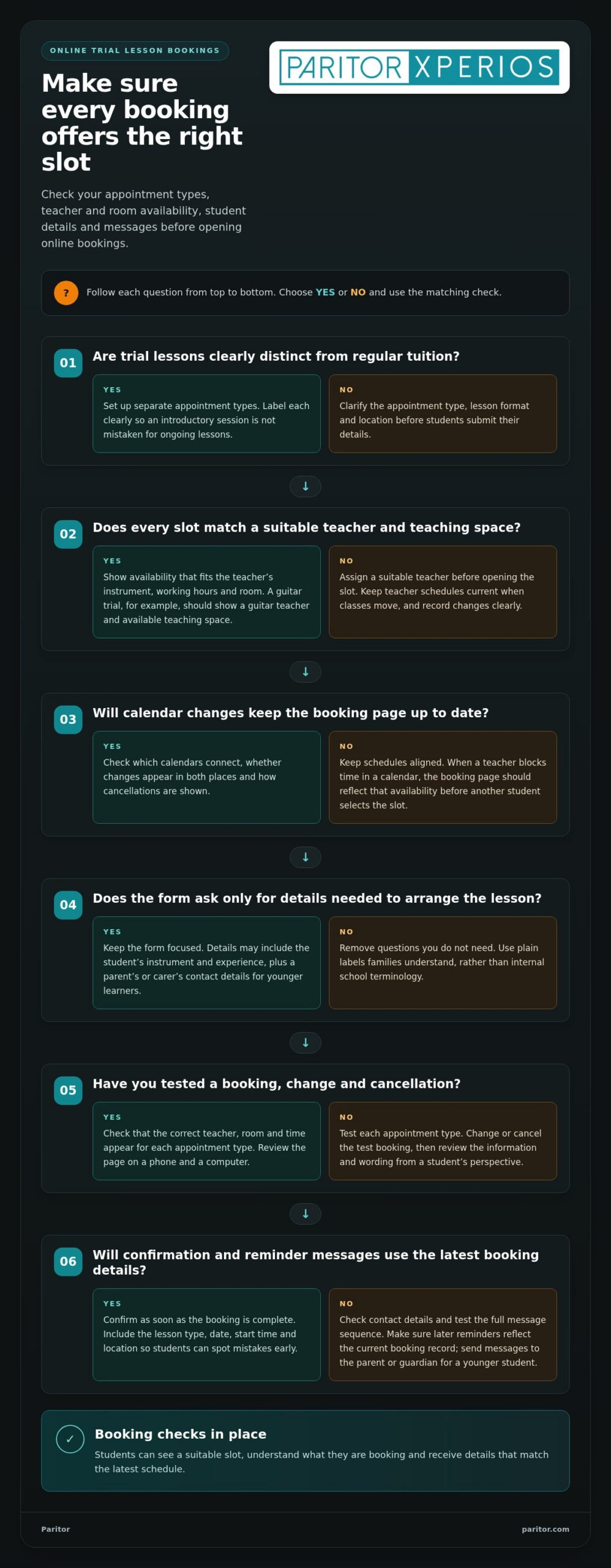
Set up separate appointment types for trial lessons and regular classes. A trial may be a single appointment, while regular tuition may need recurring slots or a separate enrolment step. Label each option clearly so students don’t mistake an introductory session for ongoing lessons. Show the lesson format and location before students submit their details.
Keep the form focused. Ask only for information needed to arrange the lesson, such as the student’s instrument and experience. For younger learners, include a parent’s or carer’s contact details. Review the page on a phone and a computer, since students may book on either device. Use plain labels, not internal school terminology families may not recognise.
Teacher Assignment and Studio Scheduling
Scheduling software should show which music teachers are available, along with their instruments, rooms and working hours. Assign a student to a suitable teacher before opening that slot for booking. For example, a guitar trial should show only times linked to a guitar teacher and an available teaching space.
For a multi-teacher studio, decide whether students choose a teacher or a time first. The system should match each booking against staff and room availability. Keep teacher schedules current when classes move so the booking page doesn’t offer a slot the studio has already allocated. Give staff a clear process for recording changes.
Calendar Syncing and Scheduling Fit
Calendar syncing helps teachers view appointments alongside other commitments. Check which calendars connect, whether changes appear in both places and how cancellations show. Consistent records matter: if a teacher blocks time in one calendar, the booking page should reflect that availability before another student selects the slot.
When comparing platforms, focus on how well each fits your teaching model. Consider how many staff need access, which appointment types you offer and whether you manage individual or group classes. Check how the system accommodates new teachers or lesson formats, so you can adapt without rebuilding every booking page.
Before publishing, test a booking for each appointment type. Check that the correct teacher, room and time appear, then change or cancel the test appointment. Review the page from a student’s perspective, including the information requested and the wording used. This practical check can reveal gaps before families start booking.
Calendar synchronisation and double-booking prevention
Accurate calendar availability helps students choose a time a teacher can actually deliver. Set clear rules for updating lesson slots whenever a teacher, room or instrument becomes unavailable.
Availability and Double-Booking Prevention
Start by defining bookable hours for each teacher, then add existing classes, breaks and unavailable periods. For example, block a teacher’s Tuesday afternoon before publishing guitar trial appointments. Calendar syncing can help keep external commitments visible alongside lesson bookings. Check how quickly changes appear and whether a booked slot closes to other students.
Test the process with two sample bookings for the same teacher and time. Once the first is confirmed, the second should no longer be available. Also check what happens when staff add an appointment directly to their calendar. If the system doesn’t reflect that change, students could see an outdated slot.
Calendar Integrations and Team Access
Review which calendar integrations the scheduling software supports and how each connection works. For instance, find out whether a lesson added to a teacher’s calendar blocks that time on the booking page, or whether staff must update availability separately. Website integration matters too: a booking widget should show current slots, not a static timetable.
For a teaching team, give each staff member an individual login where available. Separate profiles help administrators see who owns an appointment and which calendar needs updating. Agree on a simple process: teachers record unavailable time, administrators review clashes and the booking page reflects changes before students select slots.
Team calendars need clear ownership. Decide who can edit teacher availability, move an appointment or add a room booking. If staff change the same schedule without a shared process, a calendar connection alone won’t prevent errors. A named administrator can review clashes and maintain consistent records.
Manage instrument and room constraints within the same scheduling workflow. A drum lesson may need a different room from a piano lesson, while a shared instrument may already be in use. Record these limits against the relevant teacher or appointment type, then check them before opening the slot to students.
Website integrations can also support marketing by making booking accessible from a teacher profile or lesson page. Keep the call to action beside the relevant instrument, so a visitor interested in guitar sees the matching appointment choices. Before publishing, test the link from each page and confirm it opens the correct booking option.
Review the process whenever staff schedules change. Remove outdated availability, check connected calendars and make a sample booking through the website. This gives your team a practical way to spot clashes before students encounter them, while keeping schedules manageable for teachers and administrators.
Online lesson booking through websites, social platforms and booking widgets
Individual music teachers need straightforward appointment booking; music schools often need booking alongside wider lesson administration. In the UK, systems handling personal information must comply with relevant data protection regulations, including UK GDPR.
Booking Websites and Widgets
A dedicated booking page gives students one place to choose an instrument, session and available appointment. A booking widget puts that process on your school website, for example beside a page describing piano lessons. Check that it shows current availability and works on mobile devices. Keep the form focused on details needed to arrange the lesson.
Booking links can also guide visitors from social platforms to the right page. Add a link to a music school’s profile or a post about trial sessions, then test it on a phone. Confirm it opens the correct appointment type, not a general homepage. Use consistent wording across the website and social posts, so students recognise the next step.
An online booking website should make the route from discovery to confirmed session clear. For example, a private teacher might direct a prospective guitar student to a page showing suitable lesson options. A school can organise pages by instrument or location. Review each route regularly, especially after changing lesson details or teacher availability.
Platform Comparisons and Data Protection
Compare platforms by the work they support. An individual music teacher may prioritise simple appointment setup and a personal schedule. A music school may need several staff profiles, shared availability and administration across classes. Check how each system manages the booking journey and whether it fits your teaching structure, rather than comparing feature lists alone.
For privacy, map the information your booking form collects, such as a student’s name, contact details and chosen instrument. Explain why each detail is requested and who uses it to arrange the session. Limit access to staff who need booking information, and review how records are stored and managed under UK GDPR.
Before sharing a booking link, test the full journey as a student. Follow it from an Instagram profile or school website, select a session and review the information requested. Check that the confirmation reflects the chosen lesson. Remove outdated links when a page or appointment type changes, so students don’t land on an old booking route.
For a music school, assign responsibility for maintaining website links, social profiles and booking information. A named administrator can update the relevant page when a lesson type changes, then test the link again. For a private teacher, a single booking page may be easier to maintain. In either case, clear roles help keep student records accurate and access controlled.
Booking confirmations and cancellation or modification links
A practical trial lesson policy explains how students can cancel or reschedule, and what happens next. Put the terms beside the booking form, then repeat them in the confirmation so students can find them later.
Confirmation and Booking Change Links
A confirmation should state the student’s name, instrument, teacher, appointment time and location. Include a clear link or instruction for changing or cancelling the booking. Before using the software, test the link from a student’s email account and check that it opens the correct appointment, not a general booking page.
After a change, the student and school need matching records. Check that the original appointment no longer appears as active and that the revised time is clear. If students can’t make changes themselves, explain how to contact the school and what details to include, such as their name and lesson date.
Trial Lesson Cancellation and Rescheduling Policies
Make the trial lesson policy easy to understand and apply consistently. Explain how much notice students should give, whether they can choose another available slot and how the school handles late cancellations. Set the terms before bookings open, then use the same wording on the website, in confirmations and in any Facebook booking post.
Distinguish a one-off trial from ongoing tuition. An independent teacher might let a student rearrange a trial, while monthly lessons may follow separate terms. State each policy beside its relevant booking option so families don’t mistake trial arrangements for the rules covering regular lessons.
Plan the steps staff follow when a student cancels. For example, update the appointment record, release the slot if it can be rebooked and notify the teacher. If a student requests a different time, show available options before confirming a replacement. This keeps the booking status clear and prevents a cancelled appointment from remaining in the active schedule.
Keep a record of changes, including who made them and the revised lesson time. This gives administrators context if a parent later asks about a cancellation or a teacher sees an unexpected gap. Review the process with staff so website bookings, phone requests and messages are handled consistently.
Test the cancellation journey before publishing it. Make a sample booking, follow the change link, and check the updated confirmation. If you’re reviewing how lesson administration can support these steps, explore music service management software as a next step.
Paritor: Xperios for Music Services
Paritor’s Xperios for Music Services brings bookings and scheduling into music service administration. Its cloud-based platform supports tasks such as attendance tracking and automated invoicing, helping reduce repetitive administration. Secure online portals give teachers, parents and students access to relevant information, with data protection built into the service.
If your organisation also delivers performing arts, Xperios for Performing Arts supports its administrative needs. Private teachers and ensembles can use Xperios for Private Teachers and Xperios Ensemble Management. Choose the offering that fits your teaching structure, so you can spend more time supporting lessons.
Visit paritor.com to explore Xperios for your music service.
Build a booking journey that can grow with you
In your next review, identify where booking administration still interrupts teaching. Note the questions students ask, the changes staff handle manually and the information teachers need before a trial. These observations can help you refine the process around your school’s actual needs, rather than adding features that don’t solve a real problem.
Choosing an online booking system for trial music lessons is also a chance to plan beyond the first appointment. Consider how your approach could adapt as your teaching programme, staff arrangements or student community changes. A clear starting point makes it easier to decide what administration support you need next.
If you’re ready to discuss how your music service manages lesson bookings, contact Paritor about lesson booking. A considered next step can give your team more space to focus on teaching and help students begin their musical journey with confidence.
Frequently Asked Questions
How do students book a lesson?
Students follow the school’s chosen booking route and instructions to arrange a trial. Before booking, they can note their instrument of interest, experience and any access needs relevant to the lesson. This helps the school prepare an appropriate first session. If a parent or carer arranges the lesson, make clear whose details the school needs for future communication.
What online booking systems are available for trial music lessons in the UK?
Options include general appointment tools and education-focused administration platforms. Compare who will manage bookings, how staff access is controlled and whether administrators can review records in one place. A system designed for teaching organisations may suit schools coordinating several teachers, while an independent tutor may prefer a simpler setup. Paritor offers Xperios for Music Services, Xperios for Performing Arts and Xperios for Private Teachers.
Which systems integrate with music teacher websites, Google Calendar, and video-call apps?
Integration support varies by system, so assess each connection separately. Check whether a booking record can be carried into the school’s chosen calendar and whether online lesson details can be added without copying them manually. For video calls, agree who creates and shares the meeting details. A short test with a staff account can reveal which steps remain manual before students use the process.
Can students choose an instrument, teacher, lesson format, and available time when booking?
Students can choose from the options the school makes available, while administrators may keep some decisions in their hands. For instance, staff might assign a teacher after reviewing the student’s instrument and teaching requirements. Decide which choices students can make independently and which need staff input. This helps avoid offering a booking that doesn’t fit the school’s teaching arrangements.
How do booking systems handle payments, deposits, free trials, and refunds?
Payment arrangements depend on the school’s settings and policies. Before accepting payments, define how each transaction will be recorded, including a waived trial charge, a deposit or a refund. Make sure each transaction can be matched to the right student and booking record. Clear records help staff answer payment queries and reconcile lesson administration accurately.